Windows与macOS无线投屏全攻略:Miracast、AirPlay及替代方案详解
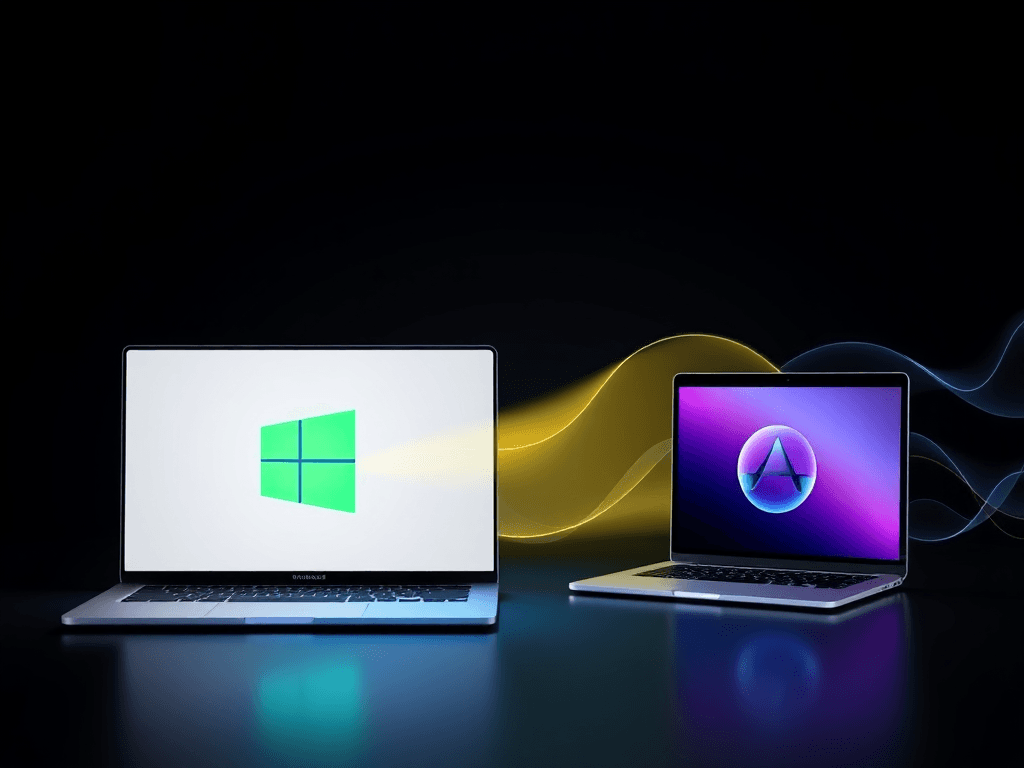
This comprehensive guide details wireless screen mirroring methods for Windows and macOS computers, covering Miracast and AirPlay protocols, system-specific steps, and alternative solutions like wireless HDMI devices. It addresses common issues and provides troubleshooting tips for seamless screen sharing across various display devices. (本文全面解析Windows与macOS电脑的无线投屏方法,涵盖Miracast和AirPlay协议、各系统具体操作步骤,以及无线HDMI设备等替代方案。针对常见问题提供解决方案,确保在不同显示设备间实现流畅的屏幕共享。)
This guide provides a detailed overview of wireless screen mirroring methods for both Windows and macOS computers, covering built-in system features, requirements, and step-by-step procedures.
本指南详细介绍了 Windows 和 macOS 电脑的无线屏幕镜像将计算机、手机或平板电脑的屏幕内容实时复制并显示到外部显示设备(如电视、投影仪)的技术,分为有线(如HDMI)和无线(如Miracast、AirPlay)两种方式。方法,涵盖内置系统功能、前提条件和分步操作流程。
Understanding Miracast一种由Wi-Fi联盟制定的无线显示标准协议,允许设备通过Wi-Fi Direct技术将屏幕内容镜像传输到兼容的显示设备,无需路由器或互联网连接。: Windows' Built-in Wireless Display Protocol
Starting with Windows 8.1, Microsoft integrated the Miracast一种由Wi-Fi联盟制定的无线显示标准协议,允许设备通过Wi-Fi Direct技术将屏幕内容镜像传输到兼容的显示设备,无需路由器或互联网连接。 protocol into its operating system, known officially as "Wireless Display." This protocol allows users to mirror their computer screen to a compatible display. Beyond simple mirroring, it also supports an "Extend" mode, effectively turning the TV or projector into a secondary monitor for a larger, multi-screen workspace.
自 Windows 8.1 起,微软已将 Miracast一种由Wi-Fi联盟制定的无线显示标准协议,允许设备通过Wi-Fi Direct技术将屏幕内容镜像传输到兼容的显示设备,无需路由器或互联网连接。 协议集成到其操作系统中,官方功能称为“无线显示”。该协议允许用户将电脑屏幕镜像将计算机、手机或平板电脑的屏幕内容实时复制并显示到外部显示设备(如电视、投影仪)的技术,分为有线(如HDMI)和无线(如Miracast、AirPlay)两种方式。到兼容的显示设备。除了简单的镜像,它还支持“扩展”模式,有效地将电视或投影仪变为第二块显示器,从而获得更大的多屏工作空间。
Prerequisites for Using Miracast一种由Wi-Fi联盟制定的无线显示标准协议,允许设备通过Wi-Fi Direct技术将屏幕内容镜像传输到兼容的显示设备,无需路由器或互联网连接。
For Miracast一种由Wi-Fi联盟制定的无线显示标准协议,允许设备通过Wi-Fi Direct技术将屏幕内容镜像传输到兼容的显示设备,无需路由器或互联网连接。 to function, your Windows PC must meet specific hardware and software requirements:
- Operating System: Windows 8.1 or later.
- Graphics: A graphics card and driver supporting WDDM 1.3 or higher.
- Wireless Adapter: A Wi-Fi adapter and its driver must support Miracast一种由Wi-Fi联盟制定的无线显示标准协议,允许设备通过Wi-Fi Direct技术将屏幕内容镜像传输到兼容的显示设备,无需路由器或互联网连接。. This is a common hurdle for many desktop PCs, as their motherboards often lack integrated wireless cards.
要使 Miracast一种由Wi-Fi联盟制定的无线显示标准协议,允许设备通过Wi-Fi Direct技术将屏幕内容镜像传输到兼容的显示设备,无需路由器或互联网连接。 正常工作,您的 Windows 电脑必须满足特定的硬件和软件要求:
- 操作系统:Windows 8.1 或更高版本。
- 显卡:支持 WDDM 1.3 或更高版本的显卡及驱动程序。
- 无线网卡:无线网卡及其驱动程序必须支持 Miracast一种由Wi-Fi联盟制定的无线显示标准协议,允许设备通过Wi-Fi Direct技术将屏幕内容镜像传输到兼容的显示设备,无需路由器或互联网连接。。这对于许多台式电脑来说是一个常见障碍,因为它们的主板通常没有集成无线网卡。
If your computer does not natively support Miracast一种由Wi-Fi联盟制定的无线显示标准协议,允许设备通过Wi-Fi Direct技术将屏幕内容镜像传输到兼容的显示设备,无需路由器或互联网连接。, third-party software utilizing proprietary protocols can often achieve similar screen mirroring effects, sometimes even over a wired Ethernet connection.
如果您的电脑本身不支持 Miracast一种由Wi-Fi联盟制定的无线显示标准协议,允许设备通过Wi-Fi Direct技术将屏幕内容镜像传输到兼容的显示设备,无需路由器或互联网连接。,通常可以使用基于私有协议的第三方软件来实现类似的屏幕镜像将计算机、手机或平板电脑的屏幕内容实时复制并显示到外部显示设备(如电视、投影仪)的技术,分为有线(如HDMI)和无线(如Miracast、AirPlay)两种方式。效果,有时甚至可以通过有线以太网连接实现。
How to Check Miracast一种由Wi-Fi联盟制定的无线显示标准协议,允许设备通过Wi-Fi Direct技术将屏幕内容镜像传输到兼容的显示设备,无需路由器或互联网连接。 Support
The simplest method to verify Miracast一种由Wi-Fi联盟制定的无线显示标准协议,允许设备通过Wi-Fi Direct技术将屏幕内容镜像传输到兼容的显示设备,无需路由器或互联网连接。 compatibility is through the system settings:
- Open Settings.
- Navigate to Devices > Bluetooth & other devices.
- Click Add Bluetooth or other device.
- Select the Wireless display or dock option.
If your device supports Miracast一种由Wi-Fi联盟制定的无线显示标准协议,允许设备通过Wi-Fi Direct技术将屏幕内容镜像传输到兼容的显示设备,无需路由器或互联网连接。, a search interface for available displays will appear. If not supported, an error message will be displayed.
验证 Miracast一种由Wi-Fi联盟制定的无线显示标准协议,允许设备通过Wi-Fi Direct技术将屏幕内容镜像传输到兼容的显示设备,无需路由器或互联网连接。 兼容性的最简单方法是通过系统设置:
- 打开设置。
- 转到设备 > 蓝牙和其他设备。
- 点击添加蓝牙或其他设备。
- 选择无线显示扩展坞选项。
如果您的设备支持 Miracast一种由Wi-Fi联盟制定的无线显示标准协议,允许设备通过Wi-Fi Direct技术将屏幕内容镜像传输到兼容的显示设备,无需路由器或互联网连接。,将出现搜索可用显示设备的界面。如果不支持,则会显示错误信息。
Essential Windows Screen Projection Shortcuts
Windows provides convenient keyboard shortcuts for screen projection:
- Win + K: Directly invokes the system's wireless display interface to connect to TVs, projectors, or dongles.
- Win + P: After a successful connection, this shortcut cycles through display modes: Duplicate (mirror), Extend, Second screen only, etc.
Windows 为屏幕投影提供了便捷的键盘快捷键:
- Win + K:直接调用系统的无线显示界面,连接到电视、投影仪或投屏器。
- Win + P:成功连接后,此快捷键用于切换显示模式:复制(镜像)、扩展、仅第二屏幕等。
Step-by-Step Guide for Different Windows Versions
Windows 11
For users who prefer a graphical interface, follow these steps:
- Open Settings > System > Display.
- Locate and click Connect to a wireless display.
- A "Cast" window will open. Select your Miracast一种由Wi-Fi联盟制定的无线显示标准协议,允许设备通过Wi-Fi Direct技术将屏幕内容镜像传输到兼容的显示设备,无需路由器或互联网连接。-compatible display device from the list.
对于喜欢图形界面的用户,请按照以下步骤操作:
- 打开设置 > 系统 > 屏幕。
- 找到并点击连接到无线显示器。
- 将打开“投放”窗口。从列表中选择您兼容 Miracast一种由Wi-Fi联盟制定的无线显示标准协议,允许设备通过Wi-Fi Direct技术将屏幕内容镜像传输到兼容的显示设备,无需路由器或互联网连接。 的显示设备。
Windows 10
The process in Windows 10 is slightly different:
- Click the Action Center icon (speech bubble) in the bottom-right taskbar.
- Click the Connect button/tile.
- Choose your target wireless display from the list that appears.
Windows 10 中的操作略有不同:
- 点击右下角任务栏中的操作中心图标(对话气泡)。
- 点击连接按钮/磁贴。
- 从出现的列表中选择您的目标无线显示设备。
Windows 8.1
(Note: Microsoft ended support for Windows 8.1 in January 2023.)
- Move your cursor to the bottom-right corner to open the Charms Bar.
- Click Devices.
- Click Project, then select Add a Wireless Display.
- Choose your display device.
(注:微软已于 2023 年 1 月终止对 Windows 8.1 的支持。)
- 将光标移动到右下角以打开超级按钮栏。
- 点击设备。
- 点击投影,然后选择添加无线显示。
- 选择您的显示设备。
Windows 7 and Non-Miracast一种由Wi-Fi联盟制定的无线显示标准协议,允许设备通过Wi-Fi Direct技术将屏幕内容镜像传输到兼容的显示设备,无需路由器或互联网连接。 Solutions
Windows 7 does not support Miracast一种由Wi-Fi联盟制定的无线显示标准协议,允许设备通过Wi-Fi Direct技术将屏幕内容镜像传输到兼容的显示设备,无需路由器或互联网连接。. Achieving wireless screen mirroring requires alternative approaches:
- Using External Hardware: Purchase a dedicated wireless display adapter (dongle) or a TV box that comes with its own proprietary mirroring software. This is ideal for non-smart TVs or projectors.
- Using Software Solutions: If your display (smart TV/projector) can install apps, look for third-party screen mirroring applications on its app store. Install a compatible companion app on both your PC and the display.
Windows 7 不支持 Miracast一种由Wi-Fi联盟制定的无线显示标准协议,允许设备通过Wi-Fi Direct技术将屏幕内容镜像传输到兼容的显示设备,无需路由器或互联网连接。。实现无线屏幕镜像将计算机、手机或平板电脑的屏幕内容实时复制并显示到外部显示设备(如电视、投影仪)的技术,分为有线(如HDMI)和无线(如Miracast、AirPlay)两种方式。需要替代方案:
- 使用外部硬件:购买专用的无线显示适配器(投屏器)或自带私有镜像软件的电视盒子。这非常适合非智能电视或投影仪。
- 使用软件解决方案:如果您的显示设备(智能电视/投影仪)可以安装应用程序,请在其应用商店中寻找第三方屏幕镜像将计算机、手机或平板电脑的屏幕内容实时复制并显示到外部显示设备(如电视、投影仪)的技术,分为有线(如HDMI)和无线(如Miracast、AirPlay)两种方式。应用。在您的电脑和显示设备上安装兼容的配套应用程序。
Screen Mirroring on macOS with AirPlay苹果公司开发的专有无线通信协议套件,用于在兼容设备间流式传输音频、视频、设备屏幕和照片,支持局域网或点对点连接。
Apple computers utilize the proprietary AirPlay苹果公司开发的专有无线通信协议套件,用于在兼容设备间流式传输音频、视频、设备屏幕和照片,支持局域网或点对点连接。 protocol for wireless screen mirroring. A fundamental requirement for standard AirPlay苹果公司开发的专有无线通信协议套件,用于在兼容设备间流式传输音频、视频、设备屏幕和照片,支持局域网或点对点连接。 is that both the Mac and the target display (Apple TV, AirPlay苹果公司开发的专有无线通信协议套件,用于在兼容设备间流式传输音频、视频、设备屏幕和照片,支持局域网或点对点连接。 2-compatible smart TV, or software-based receiver) must be connected to the same local network, regardless of whether the connection is wired or wireless.
苹果电脑使用其私有的 AirPlay苹果公司开发的专有无线通信协议套件,用于在兼容设备间流式传输音频、视频、设备屏幕和照片,支持局域网或点对点连接。 协议进行无线屏幕镜像将计算机、手机或平板电脑的屏幕内容实时复制并显示到外部显示设备(如电视、投影仪)的技术,分为有线(如HDMI)和无线(如Miracast、AirPlay)两种方式。。标准 AirPlay苹果公司开发的专有无线通信协议套件,用于在兼容设备间流式传输音频、视频、设备屏幕和照片,支持局域网或点对点连接。 的一个基本要求是,Mac 和目标显示设备(Apple TV、兼容 AirPlay苹果公司开发的专有无线通信协议套件,用于在兼容设备间流式传输音频、视频、设备屏幕和照片,支持局域网或点对点连接。 2 的智能电视或基于软件的接收器)必须连接到同一个本地网络,无论连接是有线还是无线。
Locating the Screen Mirroring Function
For new users, finding the screen mirroring option in the macOS menu bar can be confusing, as the icon may not be visible by default.
对于新用户来说,在 macOS 菜单栏中找到屏幕镜像将计算机、手机或平板电脑的屏幕内容实时复制并显示到外部显示设备(如电视、投影仪)的技术,分为有线(如HDMI)和无线(如Miracast、AirPlay)两种方式。选项可能会令人困惑,因为该图标默认可能不可见。
macOS Big Sur (11.0) and Later
Apple redesigned the interface, integrating Screen Mirroring into the Control Center.
- Ensure your Mac and target display are on the same network.
- Click the Control Center icon in the top menu bar.
- Click Screen Mirroring.
- Select your AirPlay苹果公司开发的专有无线通信协议套件,用于在兼容设备间流式传输音频、视频、设备屏幕和照片,支持局域网或点对点连接。-compatible display from the list.
Apple 重新设计了界面,将屏幕镜像将计算机、手机或平板电脑的屏幕内容实时复制并显示到外部显示设备(如电视、投影仪)的技术,分为有线(如HDMI)和无线(如Miracast、AirPlay)两种方式。功能集成到控制中心。
- 确保您的 Mac 和目标显示设备在同一网络。
- 点击顶部菜单栏中的控制中心图标。
- 点击屏幕镜像将计算机、手机或平板电脑的屏幕内容实时复制并显示到外部显示设备(如电视、投影仪)的技术,分为有线(如HDMI)和无线(如Miracast、AirPlay)两种方式。。
- 从列表中选择您兼容 AirPlay苹果公司开发的专有无线通信协议套件,用于在兼容设备间流式传输音频、视频、设备屏幕和照片,支持局域网或点对点连接。 的显示设备。
macOS Catalina (10.15) and Earlier
In older versions, the feature is accessed via the AirPlay苹果公司开发的专有无线通信协议套件,用于在兼容设备间流式传输音频、视频、设备屏幕和照片,支持局域网或点对点连接。 status icon in the menu bar.
- Ensure both devices are on the same network.
- If the AirPlay苹果公司开发的专有无线通信协议套件,用于在兼容设备间流式传输音频、视频、设备屏幕和照片,支持局域网或点对点连接。 icon is missing, go to System Preferences > Displays and check Show mirroring options in the menu bar when available.
- Click the AirPlay苹果公司开发的专有无线通信协议套件,用于在兼容设备间流式传输音频、视频、设备屏幕和照片,支持局域网或点对点连接。 icon in the menu bar.
- Select your target display.
在旧版本中,该功能通过菜单栏中的 AirPlay苹果公司开发的专有无线通信协议套件,用于在兼容设备间流式传输音频、视频、设备屏幕和照片,支持局域网或点对点连接。 状态图标访问。
- 确保两台设备在同一网络。
- 如果 AirPlay苹果公司开发的专有无线通信协议套件,用于在兼容设备间流式传输音频、视频、设备屏幕和照片,支持局域网或点对点连接。 图标缺失,请前往系统偏好设置 > 显示器,勾选在菜单栏中显示镜像选项(当可用时)。
- 点击菜单栏中的 AirPlay苹果公司开发的专有无线通信协议套件,用于在兼容设备间流式传输音频、视频、设备屏幕和照片,支持局域网或点对点连接。 图标。
- 选择您的目标显示设备。
Peer-to-Peer (P2P) AirPlay苹果公司开发的专有无线通信协议套件,用于在兼容设备间流式传输音频、视频、设备屏幕和照片,支持局域网或点对点连接。
Some modern Apple devices and receivers support a more convenient P2P AirPlay基于Apple Wireless Direct Link (AWDL)技术的点对点AirPlay功能,允许设备在无需共享网络的情况下直接进行屏幕镜像,提升连接便捷性。 mode based on Apple Wireless Direct Link (AWDL). This allows for direct screen mirroring without requiring both devices to be on the same Wi-Fi network. The connection is established directly between the Mac and the display device.
一些现代的 Apple 设备和接收器支持基于 Apple 无线直连(AWDL)的更便捷的 P2P AirPlay基于Apple Wireless Direct Link (AWDL)技术的点对点AirPlay功能,允许设备在无需共享网络的情况下直接进行屏幕镜像,提升连接便捷性。 模式。这允许无需两台设备连接同一 Wi-Fi 网络即可直接进行屏幕镜像将计算机、手机或平板电脑的屏幕内容实时复制并显示到外部显示设备(如电视、投影仪)的技术,分为有线(如HDMI)和无线(如Miracast、AirPlay)两种方式。。连接直接在 Mac 和显示设备之间建立。
The Alternative: Wireless HDMI Systems
While software-based protocols like Miracast一种由Wi-Fi联盟制定的无线显示标准协议,允许设备通过Wi-Fi Direct技术将屏幕内容镜像传输到兼容的显示设备,无需路由器或互联网连接。 and AirPlay苹果公司开发的专有无线通信协议套件,用于在兼容设备间流式传输音频、视频、设备屏幕和照片,支持局域网或点对点连接。 are convenient, Wireless HDMI systems offer a robust alternative, particularly in specific scenarios:
- Shared Environments: Conference rooms or classrooms with frequent, rotating users.
- Ease of Use: For family members less familiar with computer settings.
- Fixed Desktop PCs: For stationary computers where wireless adapters may be lacking.
虽然基于软件的协议如 Miracast一种由Wi-Fi联盟制定的无线显示标准协议,允许设备通过Wi-Fi Direct技术将屏幕内容镜像传输到兼容的显示设备,无需路由器或互联网连接。 和 AirPlay苹果公司开发的专有无线通信协议套件,用于在兼容设备间流式传输音频、视频、设备屏幕和照片,支持局域网或点对点连接。 很方便,但无线 HDMI 系统提供了一个强大的替代方案,特别是在特定场景下:
- 共享环境:使用者频繁轮换的会议室或教室。
- 易用性:对于不太熟悉电脑设置的家庭成员。
- 固定台式电脑:适用于可能缺少无线适配器的固定位置电脑。
A Wireless HDMI kit typically consists of a transmitter (connected to the computer's HDMI/USB port) and a receiver (connected to the display's HDMI port). They create a direct, wireless video link.
无线 HDMI 套件通常包括一个发射器(连接到电脑的 HDMI/USB 端口)和一个接收器(连接到显示设备的 HDMI 端口)。它们建立直接的无线视频链路。
Advantages of Wireless HDMI
- Plug-and-Play: Requires no software installation or driver configuration, similar to a physical HDMI cable.
- Extended Range and Flexibility: Offers greater freedom of placement compared to being tethered by a cable.
- Simplicity and Reliability: Eliminates network configuration hassles, providing a consistent, dedicated connection for screen mirroring.
- 即插即用:无需安装软件或配置驱动程序,类似于物理 HDMI 线。
- 范围更广,更灵活:与受线缆束缚相比,提供了更大的放置自由度。
- 简单可靠:消除了网络配置的麻烦,为屏幕镜像将计算机、手机或平板电脑的屏幕内容实时复制并显示到外部显示设备(如电视、投影仪)的技术,分为有线(如HDMI)和无线(如Miracast、AirPlay)两种方式。提供稳定、专用的连接。
This solution is highly recommended for enterprise settings or situations where maximum reliability and minimal user setup are paramount.
对于企业环境或要求最高可靠性和最少用户设置的情况,强烈推荐此解决方案。
This guide consolidates practical methods for screen mirroring across major desktop platforms. The choice between built-in protocols and dedicated hardware depends on your specific device capabilities, environment, and need for simplicity.
版权与免责声明:本文仅用于信息分享与交流,不构成任何形式的法律、投资、医疗或其他专业建议,也不构成对任何结果的承诺或保证。
文中提及的商标、品牌、Logo、产品名称及相关图片/素材,其权利归各自合法权利人所有。本站内容可能基于公开资料整理,亦可能使用 AI 辅助生成或润色;我们尽力确保准确与合规,但不保证完整性、时效性与适用性,请读者自行甄别并以官方信息为准。
若本文内容或素材涉嫌侵权、隐私不当或存在错误,请相关权利人/当事人联系本站,我们将及时核实并采取删除、修正或下架等处理措施。 也请勿在评论或联系信息中提交身份证号、手机号、住址等个人敏感信息。