新版Edge浏览器隐私设置指南:如何关闭搜索历史建议
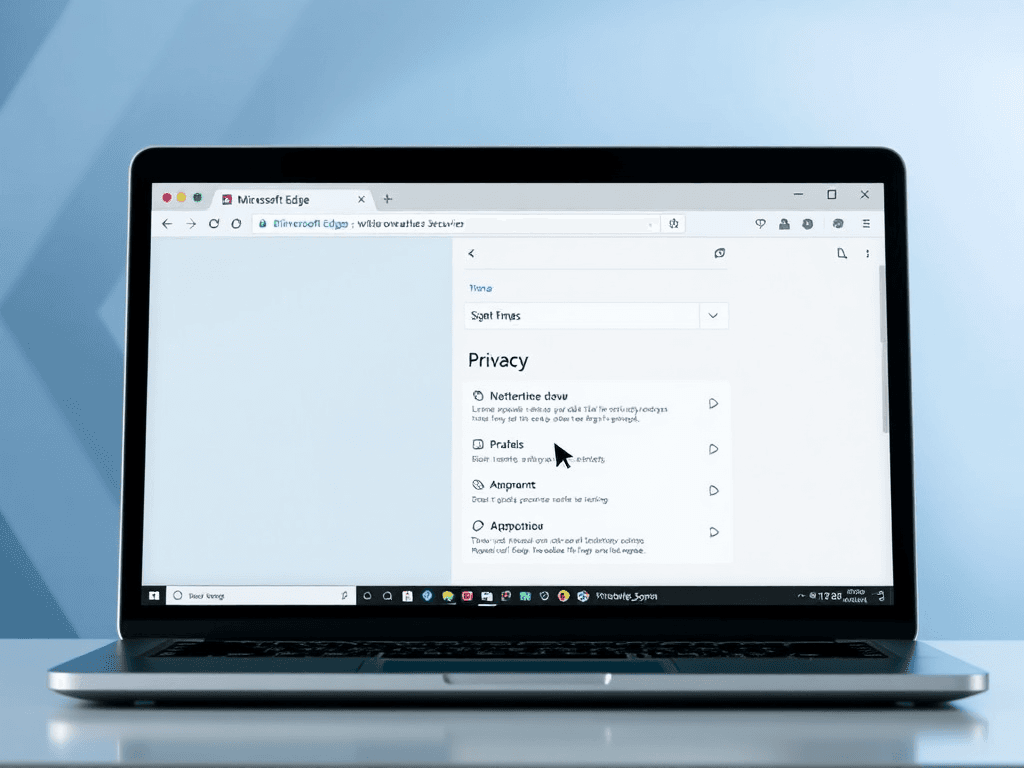
This article provides a step-by-step guide to disable search history suggestions in the new Edge browser, highlighting its relevance for privacy protection and SEO strategy optimization. (本文详细介绍了如何在新版Edge浏览器中关闭搜索框历史记录,强调其对隐私保护和SEO策略优化的重要性。)
Introduction
Modern web browsers are designed to offer a convenient and personalized user experience. A key feature contributing to this is the search and address bar, which provides suggestions based on your browsing history, bookmarks, and other data. While this feature can significantly speed up navigation and searches, it may raise privacy concerns for some users. If you share a computer, work in a public space, or simply prefer not to have your past searches readily suggested, you might want to disable this functionality. This guide provides clear, step-by-step instructions on how to turn off search history suggestions in the latest version of the Microsoft Edge browser.
现代网页浏览器旨在提供便捷和个性化的用户体验。实现这一目标的核心功能之一是搜索和地址栏,它能根据您的浏览历史、书签和其他数据提供建议。虽然此功能可以显著加快导航和搜索速度,但对于某些用户来说,可能会引发隐私方面的顾虑。如果您与他人共用电脑、在公共场所工作,或者只是不希望过去的搜索记录被轻易提示,您可能希望禁用此功能。本指南提供了清晰的分步说明,指导您如何在最新版本的 Microsoft Edge 浏览器中关闭搜索历史建议。
Prerequisites
Before proceeding, ensure you have the following:
- A computer running Windows 10 or later.
- The Microsoft Edge browser (The steps are based on version 87.0.664.47, but the process is similar in newer versions).
在开始操作之前,请确保您具备以下条件:
- 一台运行 Windows 10 或更高版本的电脑。
- Microsoft Edge 浏览器(本指南基于版本 87.0.664.47,但新版本中的操作步骤类似)。
Step-by-Step Guide to Disabling Search Suggestions
Follow these steps to manage your privacy settings in Edge.
请按照以下步骤管理 Edge 中的隐私设置浏览器中控制数据收集、历史记录和个性化建议的配置选项,调整这些设置有助于技术专业人士进行更准确的SEO分析。。
Step 1: Open Edge Settings
Launch the Microsoft Edge browser. In the top-right corner of the window, locate and click the ellipsis (...) menu icon, also known as the "Settings and more" button.
启动 Microsoft Edge 浏览器。在窗口的右上角,找到并单击省略号 (
...) 菜单图标,该图标也称为“设置及其他”按钮。
Step 2: Navigate to Settings
From the dropdown menu that appears, select Settings.
从出现的下拉菜单中,选择 设置。
Step 3: Access Privacy and Services
Within the Settings menu, look for and click on the tab labeled Privacy, search, and services in the left-hand sidebar.
在设置菜单中,在左侧边栏中找到并单击名为 隐私、搜索和服务 的选项卡。
Step 4: Find Address Bar Settings
Scroll down the "Privacy, search, and services" page until you see the section for Address bar and search. Click on it to expand the relevant options.
向下滚动“隐私、搜索和服务”页面,直到看到 地址栏和搜索 部分。单击它以展开相关选项。
Step 5: Disable History-Based Suggestions
You will see a toggle switch next to the option: "Show me search and site suggestions using my typed characters, history, favorites, and other data on this device." To disable search history suggestions, click this toggle to turn it Off (the switch will turn gray).
您会看到一个选项旁边的切换开关:“使用我在此设备上键入的字符、历史记录、收藏夹和其他数据向我显示搜索和站点建议。” 要禁用搜索历史建议,请单击此切换开关将其设置为 关(开关将变为灰色)。
Step 6: Confirmation
The change takes effect immediately. You can now close the Settings tab. The address bar will no longer suggest entries based on your local browsing history on this device.
更改立即生效。您现在可以关闭设置选项卡。地址栏将不再根据您在此设备上的本地浏览历史记录提供建议。
Key Concepts and Privacy Considerations
Disabling this specific setting primarily affects suggestions sourced from your local device data, such as your browsing history and favorites stored on that computer. It's important to distinguish this from suggestions powered by your online search engine (like Bing or Google). Those web-based suggestions may still appear unless you also adjust your search engine's privacy settings or use features like "InPrivate" browsing.
禁用此特定设置主要影响来源于 本地设备数据 的建议,例如存储在该电脑上的浏览历史和收藏夹。必须将此与由您的在线搜索引擎(如 Bing 或 Google)提供的建议区分开来。那些基于网络的建议可能仍然会出现,除非您也调整搜索引擎的隐私设置浏览器中控制数据收集、历史记录和个性化建议的配置选项,调整这些设置有助于技术专业人士进行更准确的SEO分析。或使用“InPrivate”浏览等功能。
This action is a local privacy control. For a more comprehensive privacy approach, users should also consider:
- Using InPrivate Browsing windows for sessions where no history should be saved.
- Regularly clearing browsing history, cookies, and cached data via
Settings > Privacy, search, and services > Clear browsing data. - Reviewing sync settings if you use a Microsoft account, as history may be stored in the cloud.
此操作是一项本地隐私控制。为了更全面的隐私保护方法,用户还应考虑:
- 在不应保存历史记录的会话中使用 InPrivate 浏览 窗口。
- 定期通过
设置 > 隐私、搜索和服务 > 清除浏览数据来清除浏览历史记录、Cookie 和缓存数据。 - 如果您使用 Microsoft 账户,请检查同步设置,因为历史记录可能存储在云端。
Conclusion
Managing your browser's suggestion features is a straightforward yet effective way to enhance your privacy during everyday use. Microsoft Edge provides granular controls within its Settings menu, allowing users to tailor their experience between ultimate convenience and increased data privacy. By following the steps outlined above, you can easily prevent the browser from suggesting past searches and sites based on your local history, giving you greater control over your digital footprint on a shared or public machine.
管理浏览器的建议功能是一种简单而有效的方法,可以在日常使用中增强您的隐私保护。Microsoft Edge 在其设置菜单中提供了精细的控制选项,使用户能够在极致便利性和增强数据隐私之间定制自己的体验。通过遵循上述步骤,您可以轻松阻止浏览器根据您的本地历史记录建议过去的搜索和网站,从而让您对在共享或公共电脑上的数字足迹有更大的控制权。
Note: The instructions and screenshots are based on a specific Edge version. Menu labels and the exact location of options may vary slightly in newer releases, but the overall navigation path (Settings > Privacy, search, and services > Address bar and search) remains consistent.
注意:操作说明和截图基于特定的 Edge 版本。菜单标签和选项的确切位置在新版本中可能略有不同,但总体导航路径(
设置 > 隐私、搜索和服务 > 地址栏和搜索)保持一致。
版权与免责声明:本文仅用于信息分享与交流,不构成任何形式的法律、投资、医疗或其他专业建议,也不构成对任何结果的承诺或保证。
文中提及的商标、品牌、Logo、产品名称及相关图片/素材,其权利归各自合法权利人所有。本站内容可能基于公开资料整理,亦可能使用 AI 辅助生成或润色;我们尽力确保准确与合规,但不保证完整性、时效性与适用性,请读者自行甄别并以官方信息为准。
若本文内容或素材涉嫌侵权、隐私不当或存在错误,请相关权利人/当事人联系本站,我们将及时核实并采取删除、修正或下架等处理措施。 也请勿在评论或联系信息中提交身份证号、手机号、住址等个人敏感信息。